.png)
VCC - Dress a model
The "Dress a Model" feature is where you can create outfits by selecting models and clothing items. Here’s how to use it:
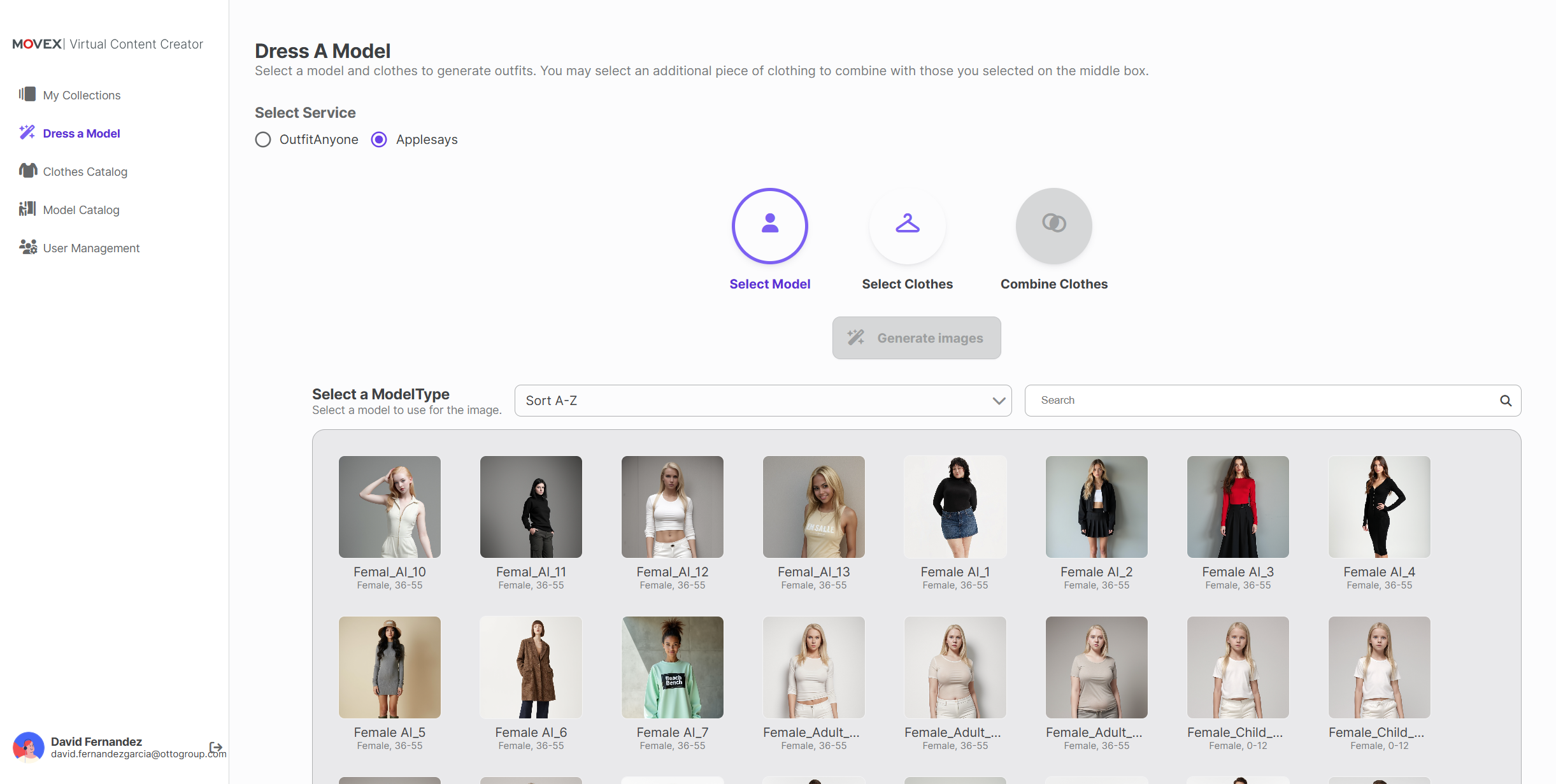
Step 1: Select AI Technology
Begin by selecting one of the two AI technologies integrated into our platform. Each technology uses a different algorithm and prompts, so try both to see which one fits your needs better!
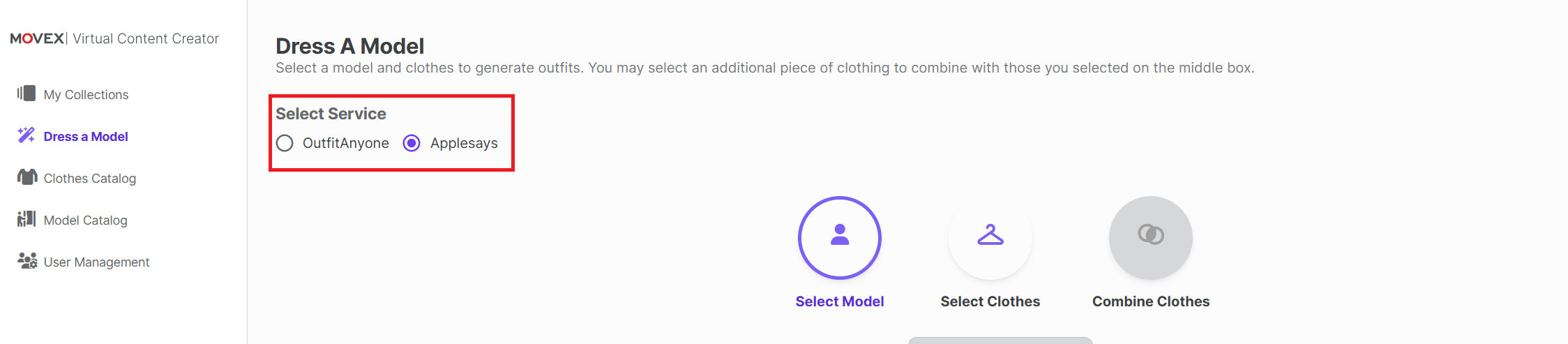
Step 2: Select a Model
Next, choose a model from the catalog. You can sort and filter the results to easily find the desired model.
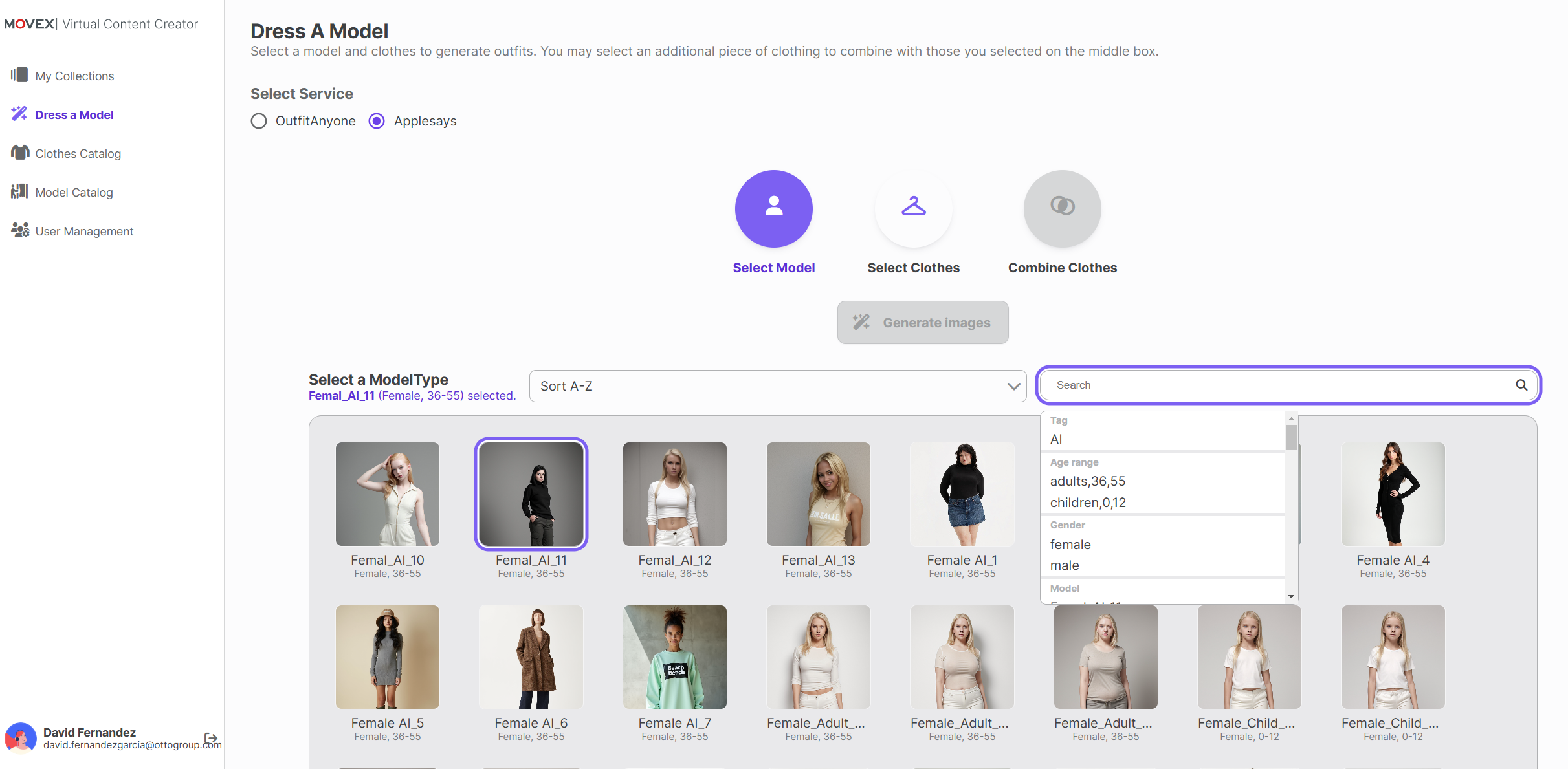
Step 3: Select Clothes
Once you’ve selected a model, proceed to the next section to choose clothes. Similar to the model selection, you can sort and filter to find the specific clothing item you want.
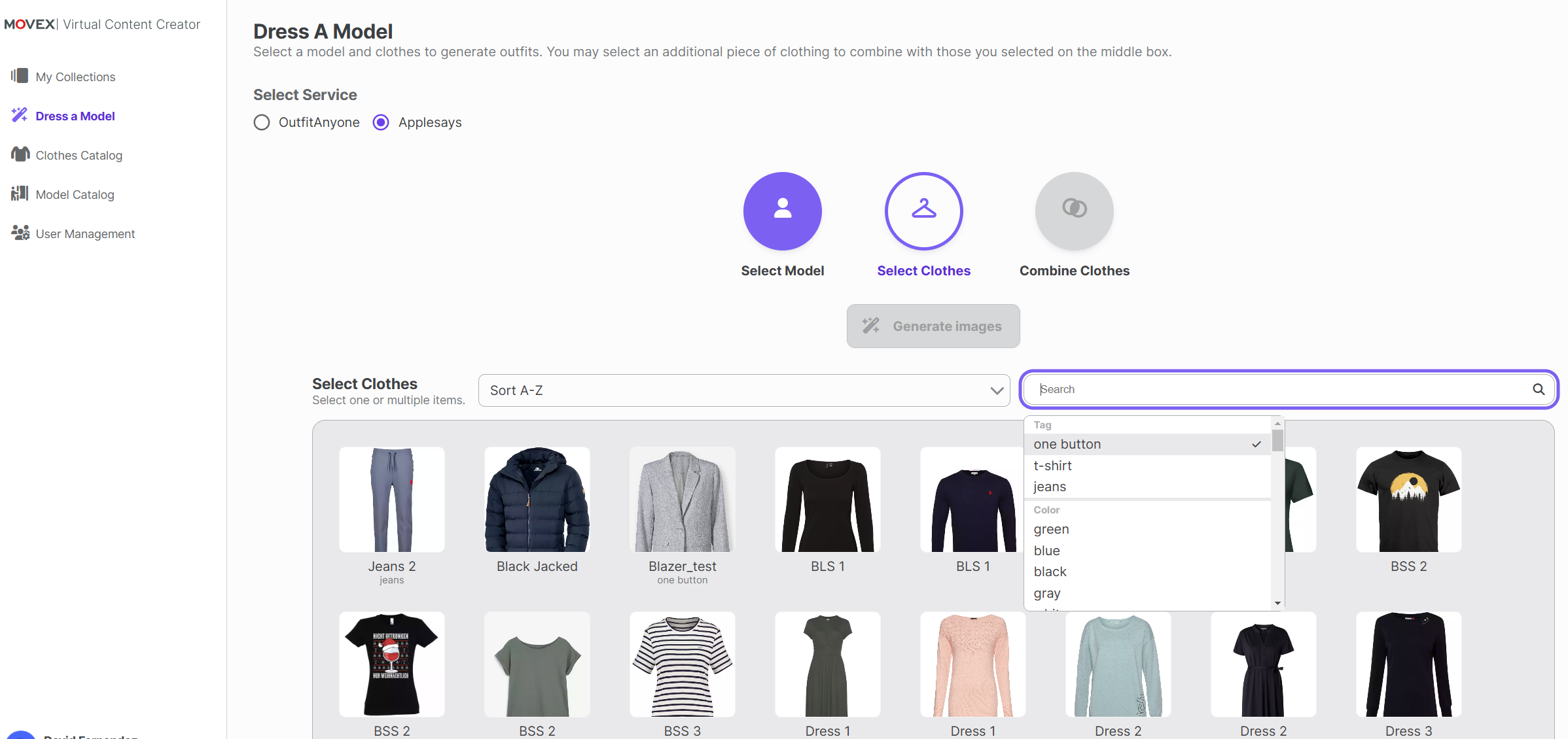
Step 4: Optional Additional Clothing
As the last step, you have the option to combine the selected outfit with another piece of clothing. If you selected an upper garment, you can only choose a bottom garment here, and vice versa.
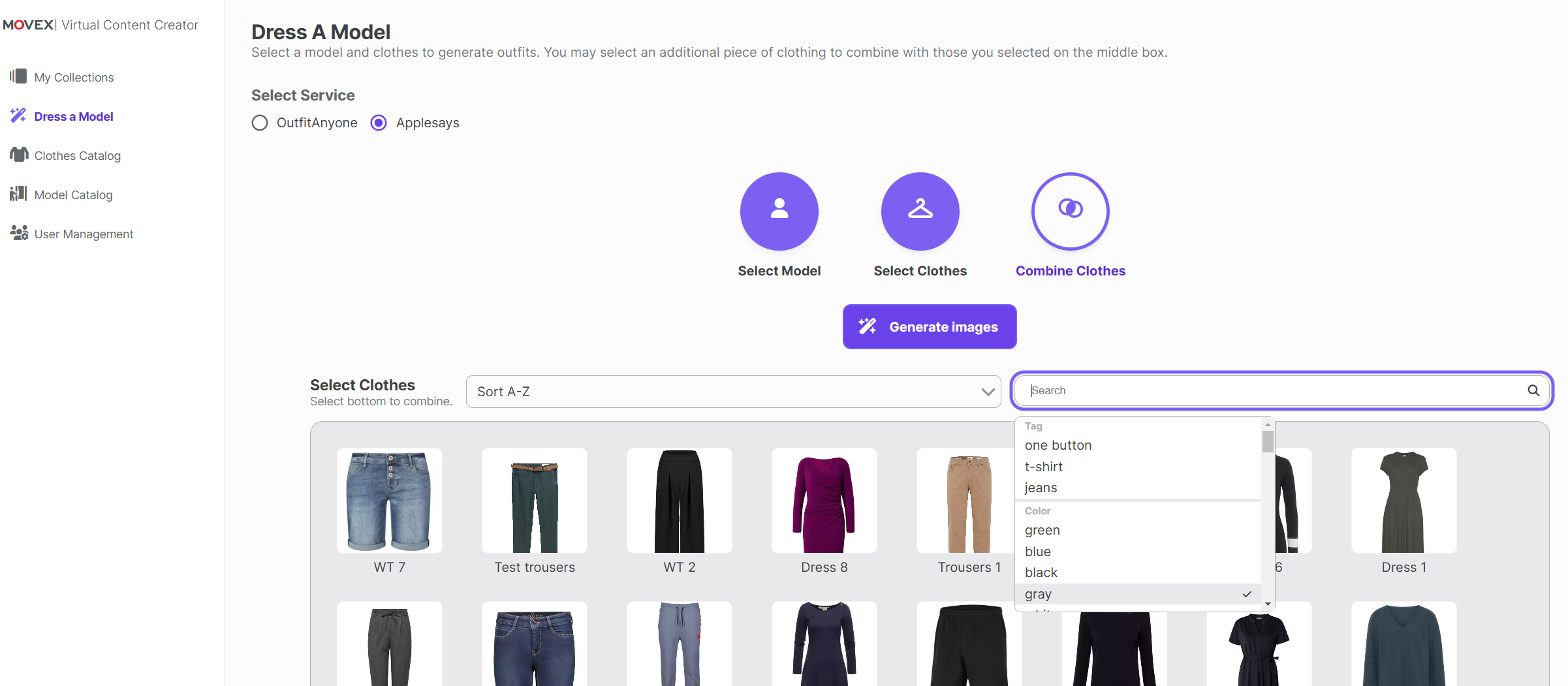
Generate Image
Once all your selections are made, click the "Generate Image" button. The image generation process will start, and you can navigate to "My Collections" to find the image in the "Uncategorized" section.
If a spinner is displayed in the thumbnail, it means the image is still being generated. An exclamation sign indicates that something has failed during generation.
Once the image is fully generated, the thumbnail will be displayed, and you can download it, add it to a collection, or edit/delete it.