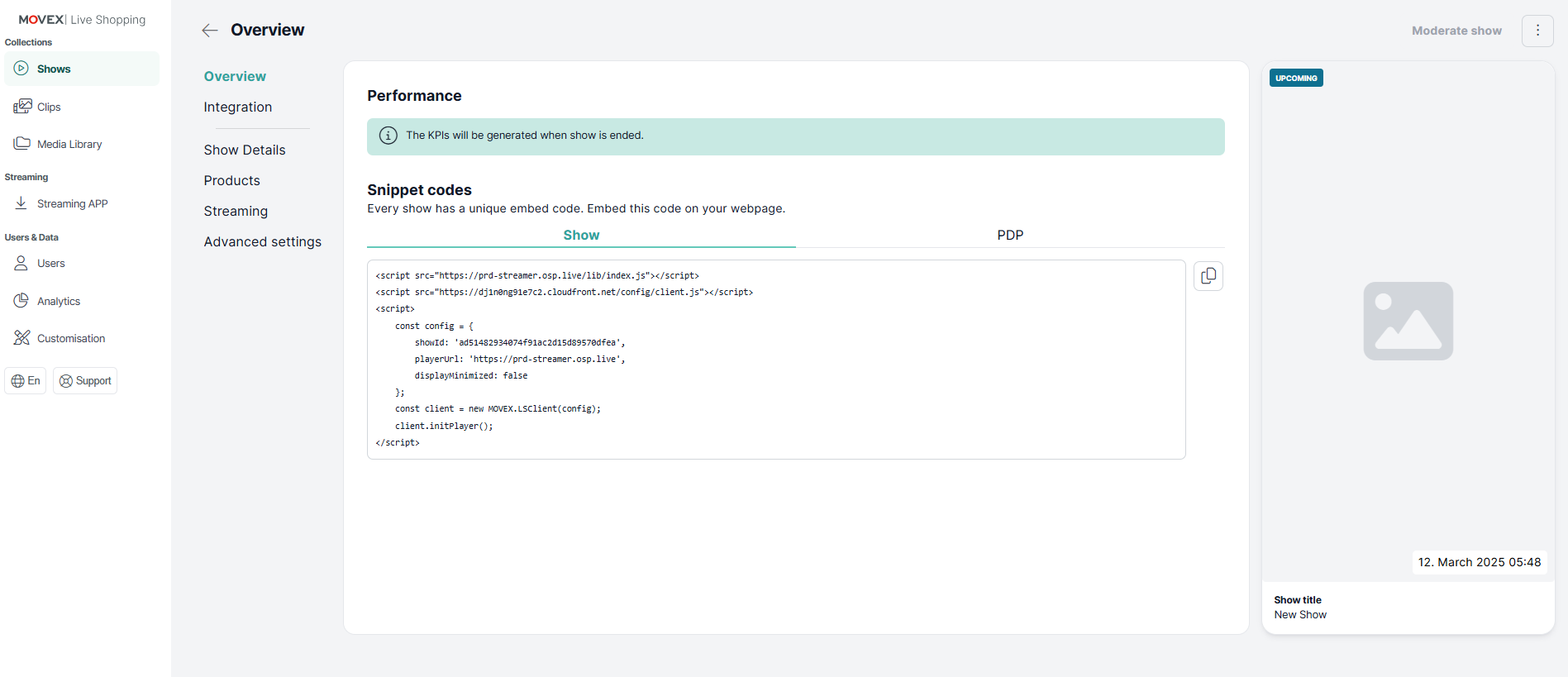
.png)
Integrate a Show
After creating a show, you can integrate it into your preferred website or shop system using the embed code. More information about Show integrations can be found here
1. Open the Created Show
Navigate to the "Shows" table in your dashboard.
Click on the name of the show you want to embed. This will open the show details page.
2. Retrieve the Embed Code
Locate the Embed Code section on the show details page.
Click on the "Copy" button next to the code.
This will copy the code to your clipboard.
3. Add the Embed Code to Your Website or Shop System
Paste the copied embed code into the HTML of the webpage where you want the show player to appear.
This works with any modern shop system or website platform that supports custom HTML embedding (e.g., WooCommerce, Magento, Shopware, Wix, Squarespace).
For Shopify:
Shopify does not allow direct embedding of iframes.
To display the show player, you must enable the "Picture-in-Picture Player" function in your Live Shopping Settings.
Once activated, you can insert the code snippet provided under "Picture-in-Picture Player" to display the show in your Shopify store.
4. Test the Integration
After embedding the code, test the page to ensure:
The player loads correctly.
The show starts when clicked.
The layout and responsiveness work on different devices and browsers.
💡 Tip:
Always verify that your shop system or CMS allows the insertion of custom scripts or HTML before embedding.
If your platform restricts iframe usage (like Shopify), use the provided alternative embedding options available in your Live Shopping settings.