.png)
Create a clip
Access the Clips Section
Click on the clip icon located in the left-side menu.
Click on the “Create Clip” button in the top-right corner.
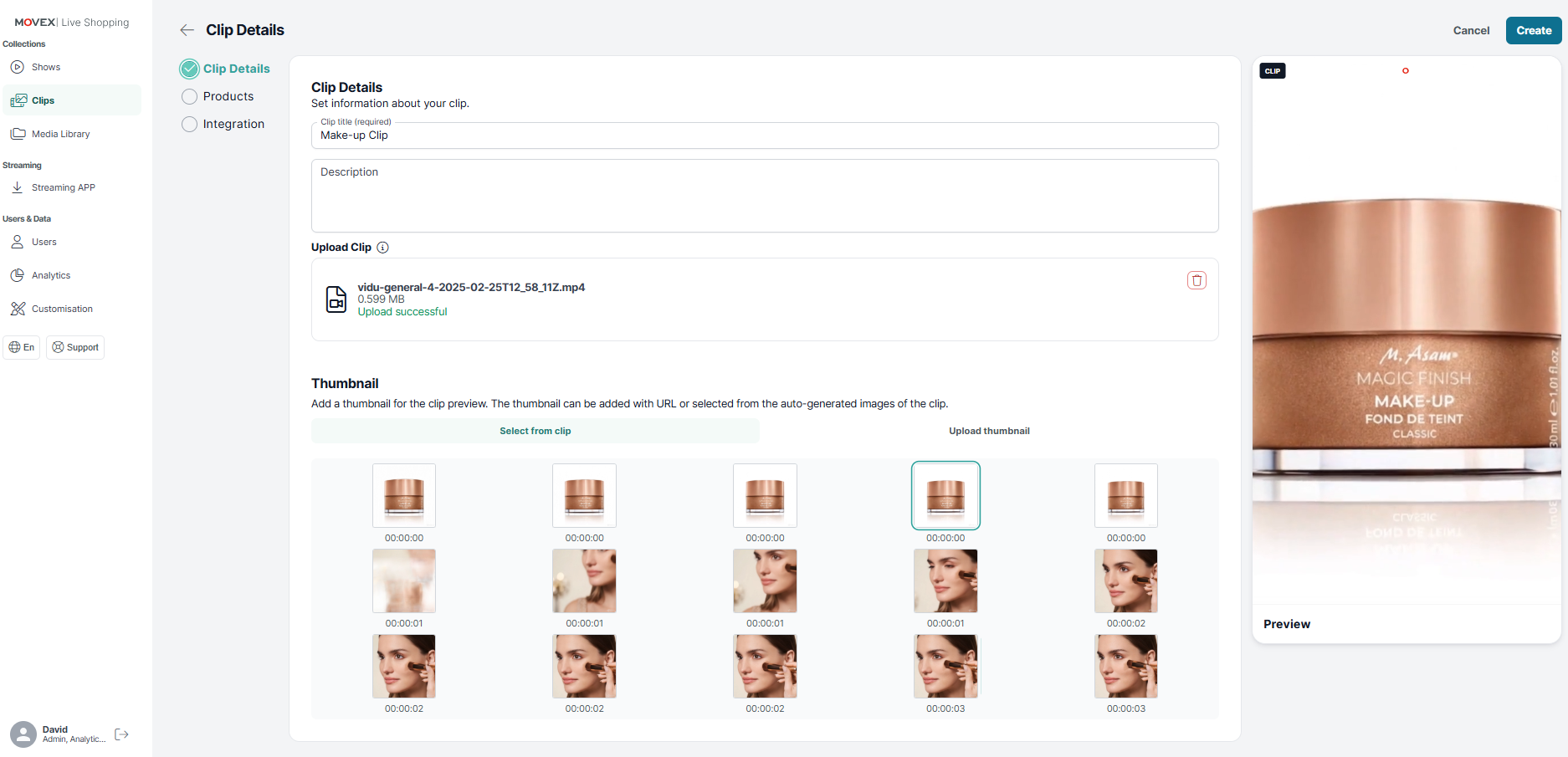
Enter Clip Details
Title → Mandatory field for identifying the clip.
Description (optional) → Add a short description of the clip.
Upload the Clip Video
Drag & Drop your video file into the designated area, or
Click the “Browse” button to select the file manually.
Set Clip Preview Image
Option 1: Add an image URL.
Option 2: Select an image frame from the uploaded video.
Add Products (optional)
As with shows, you can add product URLs to link them to the clip.
Include Clip in Media Library (optional)
Enable the “Include clip in media library” toggle.
Add relevant tags to improve content categorization and searchability.